
Implementing Affiliate Tracking is Easy with Shopify
The Shopify App makes it simple to set up tracking. Our system allows you to track and manage sales and activity from all FlexOffers affiliate partners (also known as publishers, influencers, and bloggers). The app is the only Shopify store integration required, and it gives you complete access to the FlexOffers tracking platform, where you can manage publishers in detail and advertise various programs, products, and services.
To continue, you must first create a FlexOffers account (click here to apply). You'll receive an 'Advertiser ID' from your account, which you'll need to set up the Shopify app. Your FlexOffers account has a profile page dedicated to your company, where you can choose the commission you want to pay publishers and access all of the features and controls you need to expand your program to its greatest potential.
Here are the Step-by-step instructions on how to install the Shopify App.
Step One: Getting the App
-
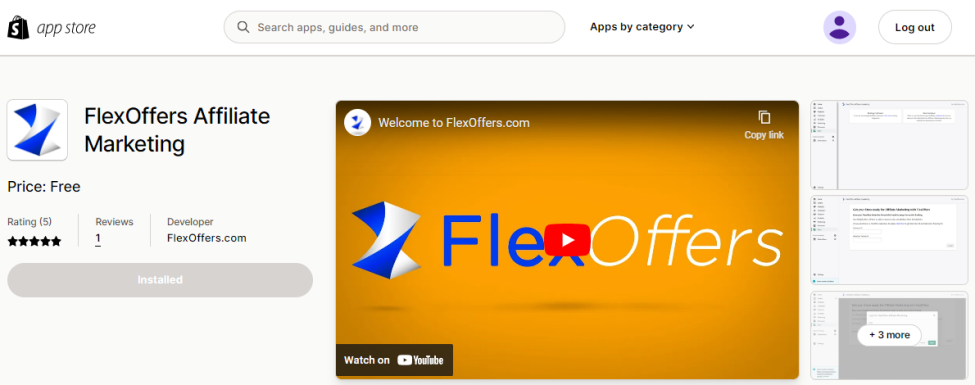
Go to the Shopify App store and click Add app on the FlexOffers page .
-
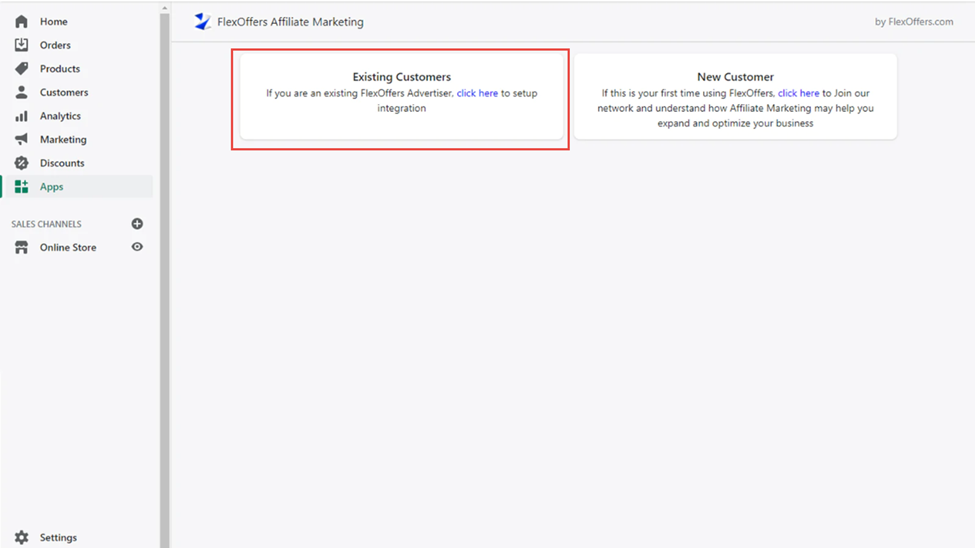
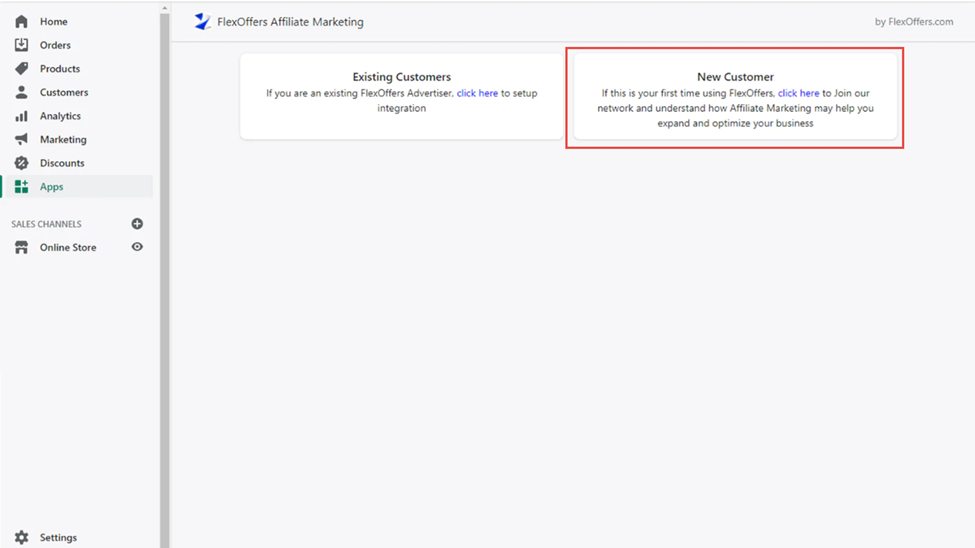
If you are an existing FlexOffers Advertiser, click on the "click here" hyperlink to set up the integration.
-
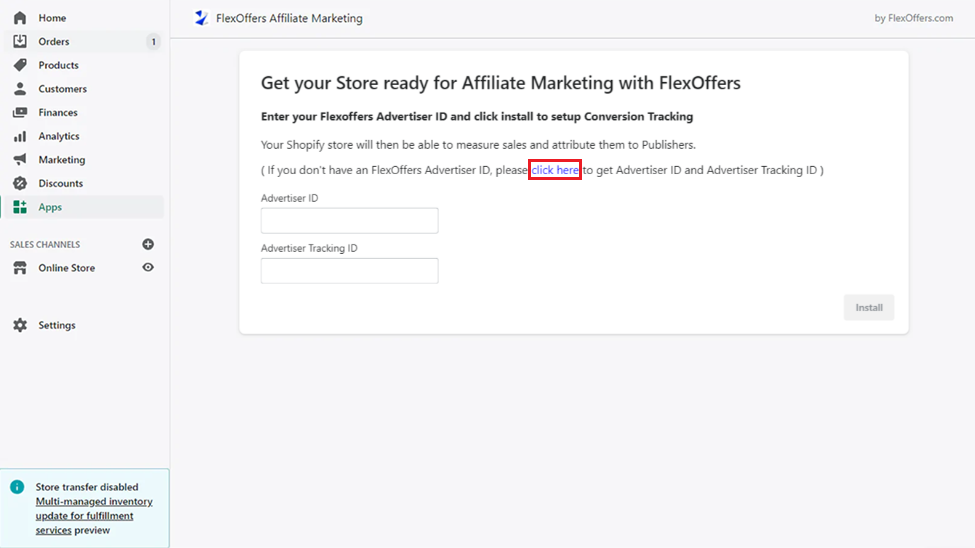
Click the "click here" link to log into your FlexOffers account.
-
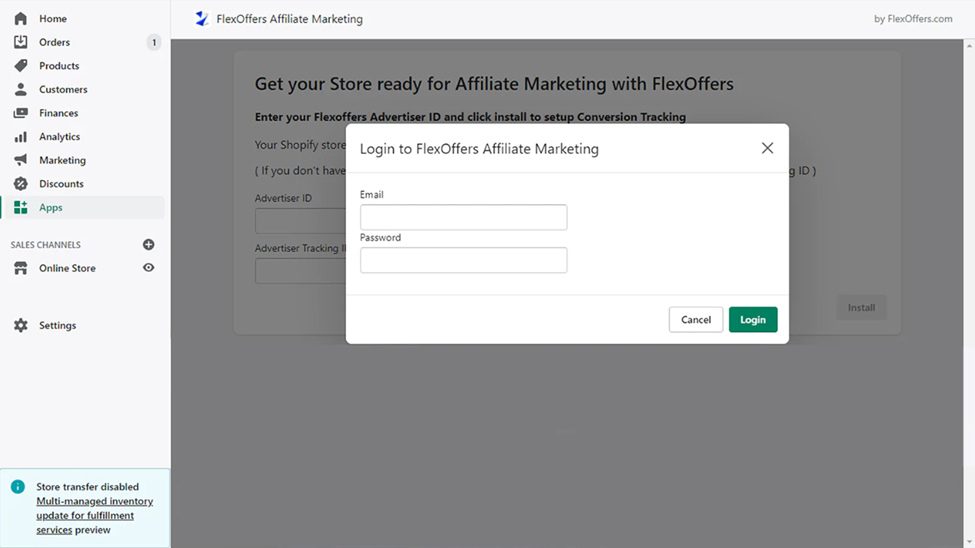
Enter your FlexOffers account email address and password, and click the Login button.
-
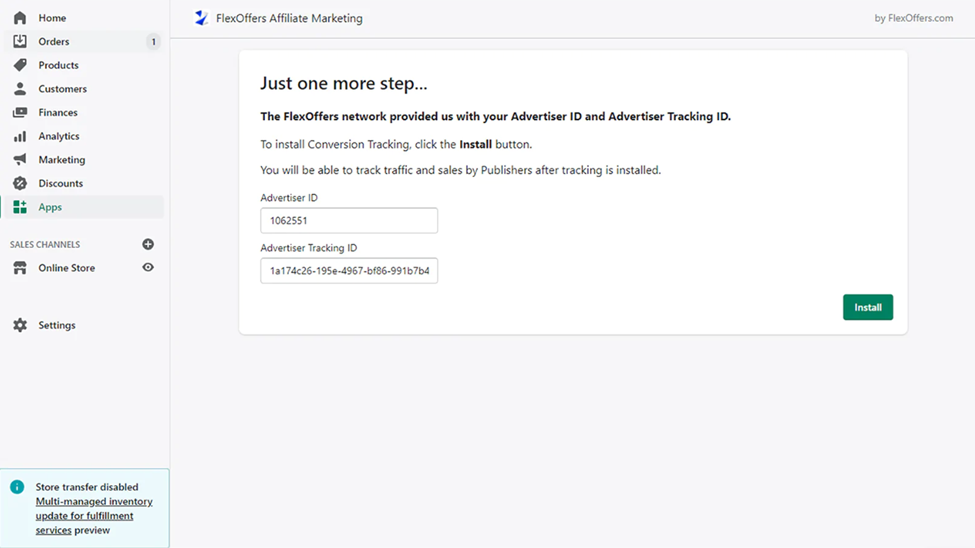
Your Advertiser ID and Advertiser Tracking ID will auto populate. Click Install.
Last Step: Tracking Diagnosis Test
-
After integrating the FlexOffers tracking you will need to create a test transaction via the FlexOffers Advertiser Platform to check the tracking is working properly.
-
To complete the steps to conduct a test transaction, please click here
If You Are a First Time Customer
-
If you are a first time customer, click on New Customer to first join the FlexOffers network.
Troubleshooting
If you receive an error message while trying to login at FlexOffers, please check to make sure the domain URL entered on your FlexOffers.com account matches your Shopify store URL.
Reconciling Transactions with Shopify Order IDs
Every Shopify transaction has both an order number and an order ID. Shopify only provides the order IDs when your transactions are tracked with the FlexOffers Shopify plugin.
Order numbers are short, sequential numbers that customers see when they make a purchase (e.g. #12345). Order IDs are long, unique numerical identifiers that are only visible in your Shopify account (e.g. 1234567891234).
To find an order ID in Shopify, click on an order, and the order ID will appear in the URL directly after /orders/. For example: https://myshopify.com/orders/1234567891234.
You can also choose to include order IDs when exporting your orders. These IDs will help you match your Shopify orders with your FlexOffers transactions.
Shopify App Theme Extension Activation Steps
1. After installing the FlexOffers Affiliate Marketing app, log into your store URL from the Shopify Admin Portal.
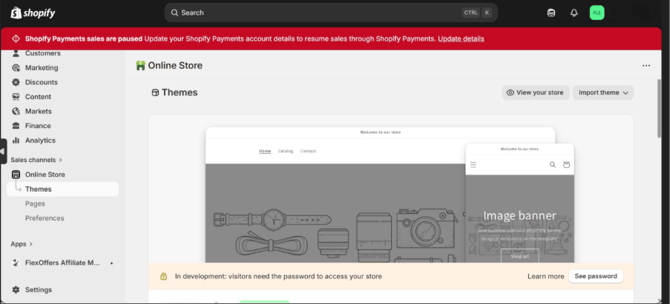
2. In the left navigation menu, click Online Store, then click Themes.
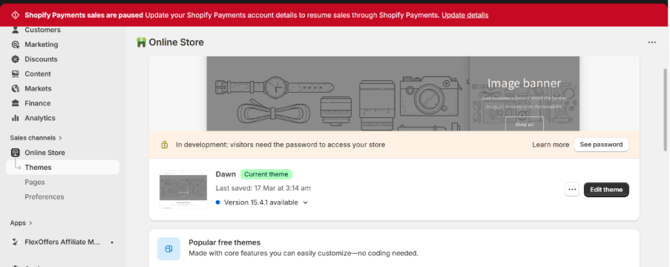
3. On the right side of the screen, click the Edit Theme button.
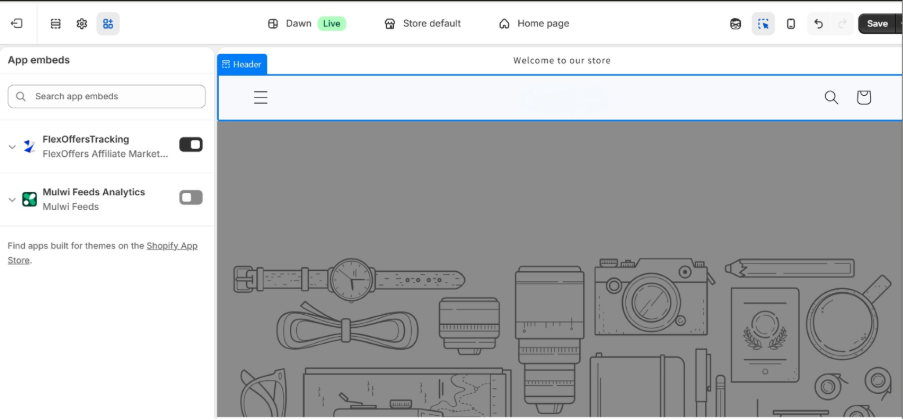
4. At the top-left of the screen, click the App Embeds icon.
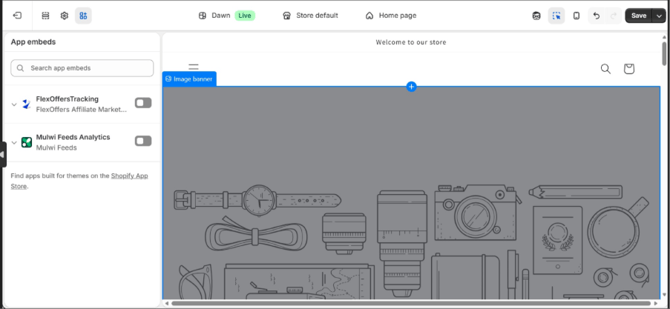
5. Toggle on the option for FlexOffersTracking and click the Save button.
Articles in this section
- JavaScript Conversion Tracking
- JavaScript Conversion Tracking for WooCommerce
- Server-to-Server (S2S) Tracking
- JavaScript Conversion Tracking for Shopify
- WooCommerce Conversion Tracking With the FlexOffers WordPress Plugin
- Affiliate Tracking with Google Tag Manager
- Wix Conversion Tracking With Google Tag Manager
- Affiliate Marketing Conversion Tracking for Magento
- BigCommerce Affiliate Marketing Conversion Tracking
- Does My Site Support JavaScript Conversion Tracking?